
Your phone already has features that can caption a noisy video, warn you when the doorbell rings and turn a tap on the back into a shortcut.
They sit inside the Accessibility menu, so most people never open it. They were built for people who are deaf, hard of hearing, blind, low-vision or have motor needs. But they help everyone, whether you are on a loud MRT or holding groceries.
Here are the ones worth turning on today, for both iPhone and Android.
1. Live captions: read what you can’t hear
Live captions turn speech from videos, podcasts and calls into on-screen text. Apple says iPhone can caption audio in any app and live conversations around you.
On Android, press a volume button, tap More, then tap Live Caption. Captions are processed on the device and don’t need mobile data after the first language download.
Why everyone should use it:
- Watch videos in a quiet office, a library or next to a sleeping baby
- Follow a clip in a loud place without earphones
- Catch what someone said in an audio message
Captions can be wrong, and Android’s version doesn’t caption music, so don’t rely on them for anything critical.
2. Sound recognition: let your phone listen for you
This feature listens for key sounds and sends you an alert. On iPhone, go to Settings > Accessibility > Sound Recognition. It can detect sounds such as doorbells, crying babies, barking dogs and alarms, and you can record custom sounds.
On Android, it is called Sound Notifications, under Settings > Accessibility. It covers smoke alarms, sirens, knocking, doorbells, beeping appliances and running water.
Why everyone should use it:
- Hear the doorbell while wearing headphones or in the shower
- Notice a beeping appliance or a tap left running
- Get alerts if you have a baby or a pet at home
Apple notes it may miss or misidentify sounds, so treat it as a helper, not a replacement for a smoke alarm.
3. Magnifier: your camera as a reading glass
On iPhone, Magnifier works like a digital magnifying glass. It uses the camera to enlarge small objects, and its reader mode can capture text and change the font, size and colour. Its detection mode can also find text nearby and read it aloud.
On Android, Google’s Lookout app helps you explore your surroundings, and Magnification zooms in on your screen.
Why everyone should use it:
- Read tiny print on a medicine box or appliance label
- Check a serial number in a dark corner
- Zoom in on a menu or sign when you forgot your glasses
4. Back Tap and Quick Tap: a shortcut on the back of your phone
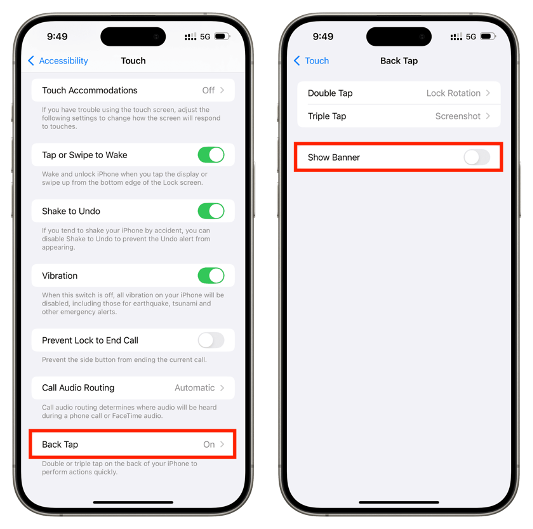
On iPhone 8 or later with iOS 14 or later, you can double or triple tap the back of the phone to run an action. Go to Settings > Accessibility > Touch > Back Tap and pick an action, such as opening Control Center, taking a screenshot or starting an accessibility shortcut.
On Pixel 4a (5G) and later, the equivalent is Quick Tap under Settings > System > Gestures. You can assign a screenshot, play or pause media, show notifications or open an app.
Why everyone should use it:
- Take a screenshot one-handed
- Open the camera or a favourite app without hunting for it
- Pause music when your hands are full
5. More hidden helpers worth a look
- Live Listen (iPhone): sends sound from your phone’s microphone to compatible AirPods or Beats, handy in a noisy cafe
- Assistive Access (iPhone): a simplified layout with large buttons, useful for setting up a phone for parents or grandparents
- Select to Speak and Reading mode (Android): have text read aloud or shown in a cleaner layout
- Sound Amplifier and Live Transcribe (Android): boost sound around you and turn speech into text