
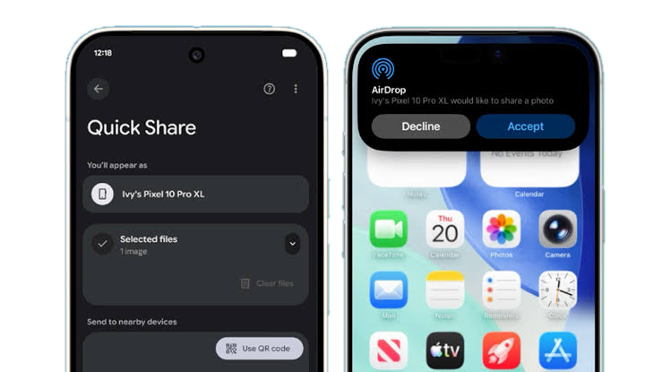
No more “just WhatsApp it to me” and blurry, compressed photos. Android and iPhone can finally share files directly. 📲
If you’ve ever tried sending a full-quality video from a Samsung phone to an iPhone, you know the pain: messaging apps squash the quality, emailing is slow and cables are… a lot. Good news: that gap is closing.
What changed?
Samsung’s file-sharing tool, Quick Share, now works with Apple’s AirDrop. That means a Galaxy phone can send photos, videos and files straight to a nearby iPhone, iPad or Mac, with no extra app and no cables.
It started on the Galaxy S26 series in March 2026. Google had already added the same trick to its Pixel phones, and Samsung has since extended it to older models through the One UI 8.5 update.
Which phones support it?
- Software: Rolling out via One UI 8.5, One UI 9, and recent Galaxy flagship/mid-range releases (including the Galaxy S25, S26 series, and expanding Galaxy A models like the A56 and A57).
- Settings: Both devices need Wi-Fi and Bluetooth turned on, and the Apple device must have AirDrop set to allow incoming files from everyone.
Tip: Check your own phone for a “Share with Apple devices” option in Quick Share settings. If you can’t see it, update your phone’s software first.
How to send photos from Samsung to iPhone
Step 1: Turn it on (Samsung) Go to Settings > Connected devices > Quick Share, then switch on Share with Apple devices.
Step 2: Get the iPhone ready On the iPhone, go to Settings > General > AirDrop and choose Everyone for 10 Minutes.
Step 3: Send Open the photo or video on your Samsung, tap Share, choose Quick Share, then tap the iPhone’s name. The iPhone user taps Accept, and it’s done.
What about iPhone to Samsung?
It works the other way too. On the iPhone, tap Share > AirDrop and pick the Galaxy phone. On the Samsung, make sure the screen is on and Quick Share is open to receive, or set it to “Anyone nearby”, then tap Accept.
Not working? Try these quick fixes
- Stay close. Both phones need to be within Bluetooth range, so keep them next to each other.
- Check the iPhone’s AirDrop setting. It must be set to Everyone (for 10 minutes), not just Contacts.
- Keep the screens on and unlocked on both phones.
- Update both phones to the latest software.
- Expect a short Wi-Fi blip. Your phone may briefly disconnect from Wi-Fi while it searches for the iPhone.
- Use the QR code backup. Quick Share can create a QR code that the iPhone user scans with the Camera app.